Hi! Someone asked how to connect to Minecraft using a domain name, so today I’ll show you how to point a domain name to your Google Cloud IP address and use it to join your server.
I’ll use 내도메인.한국 to set this up, just as you asked.
Type 내도메인.한국 into your address bar, and once you’re on the site,
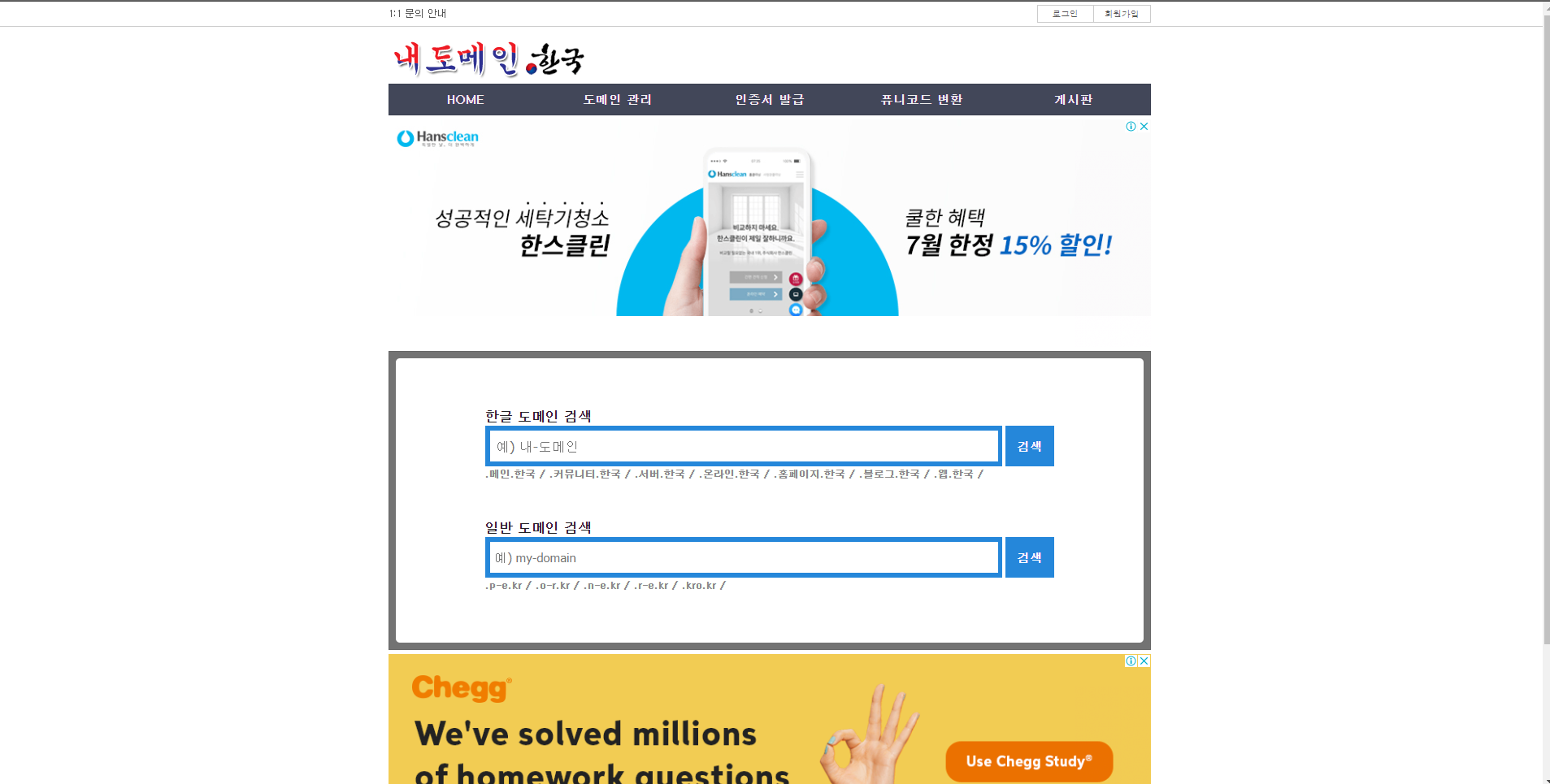
the first thing to do is sign up.
Then, once you’ve logged in,
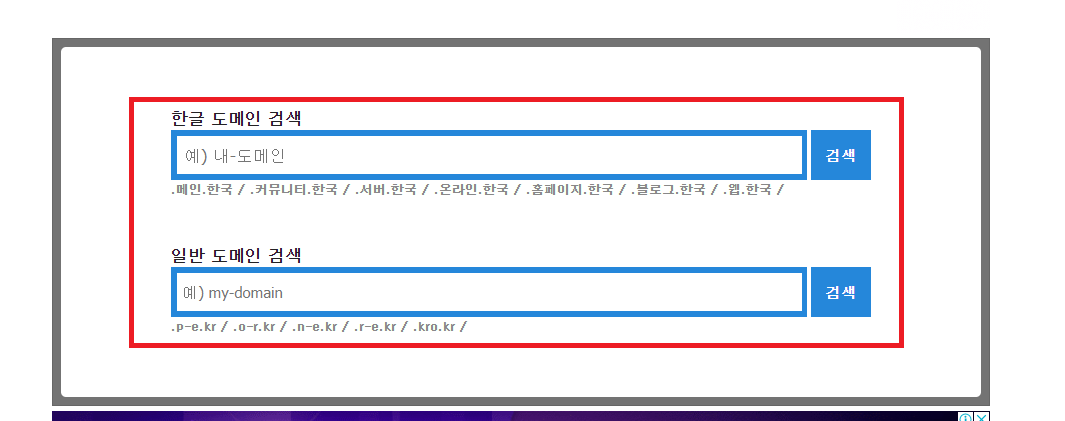
type the domain name you’d like into the domain search box you see there.
I’ll try hjmine.
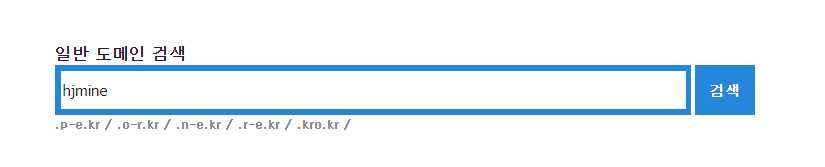
Once you’ve typed it in like that and run the search,
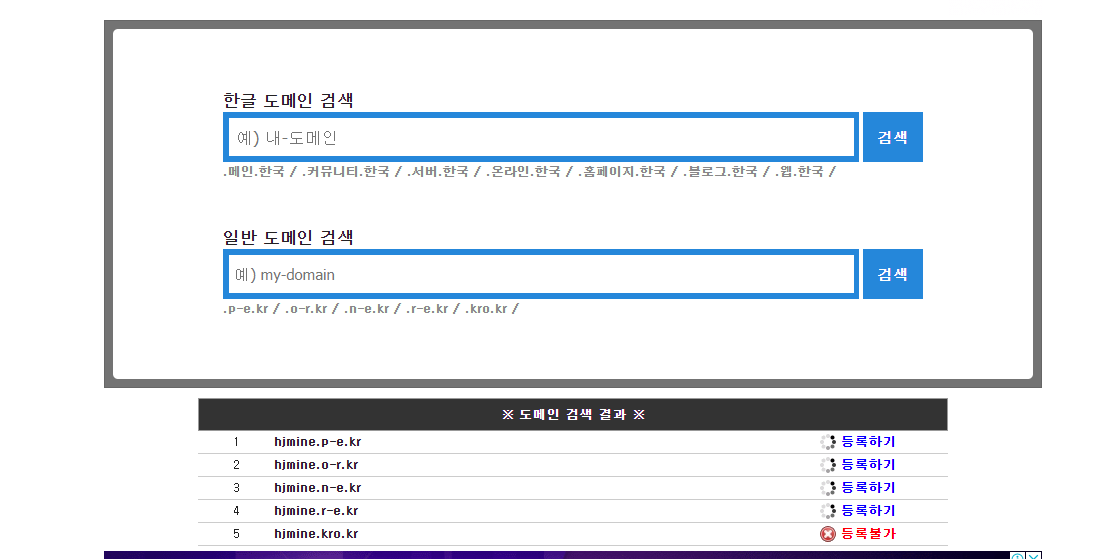
you’ll see results like these.
Of course, you can’t register any of the ones marked “Unavailable,” so pick an address you like from the ones that are available.
I’ll go with the one at the very top.
Once you’ve picked one,
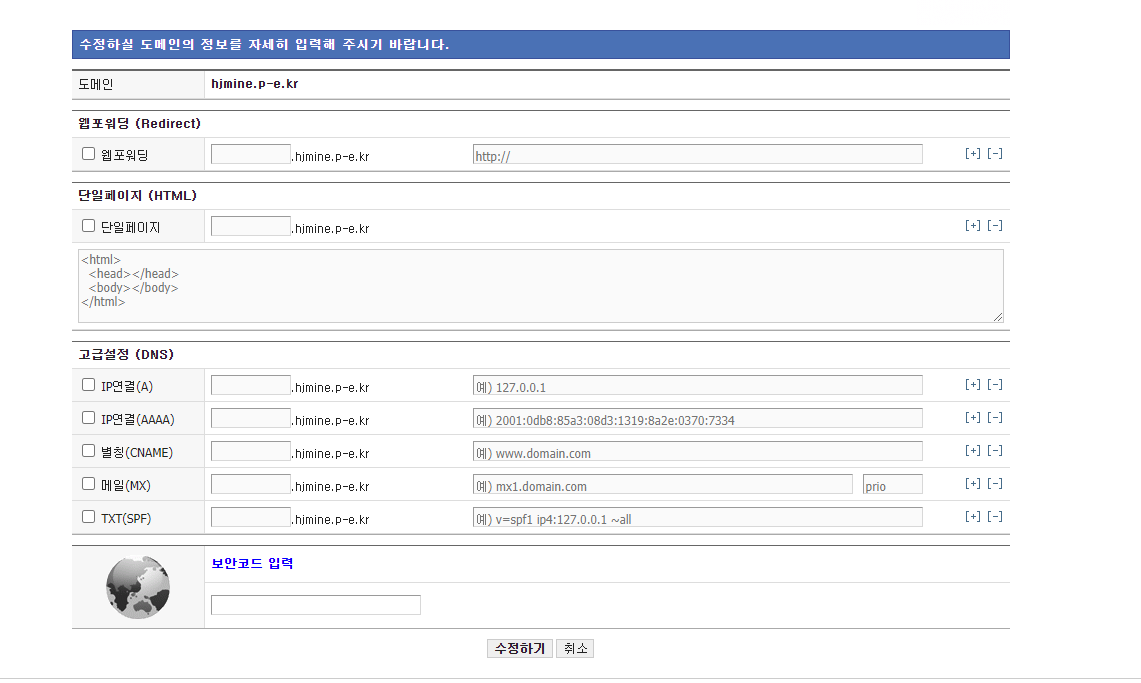
a window like this will pop up. If it doesn’t, you can still make the changes under Domain Management.
Next,
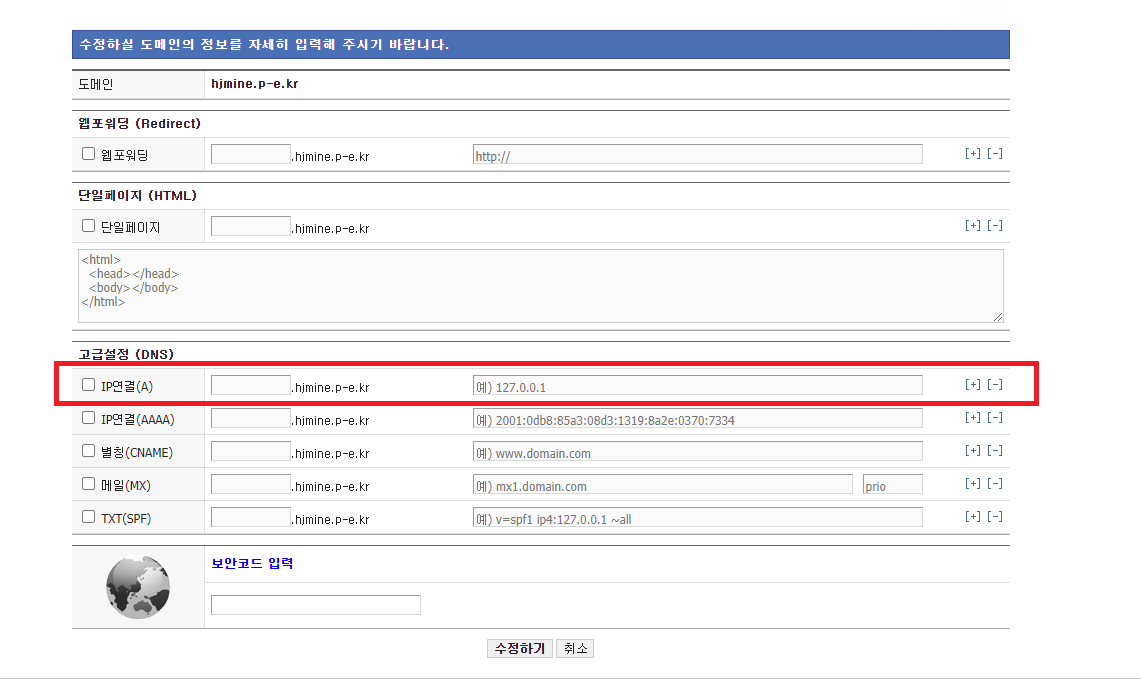
select “IP Connection” on the left and enter your Google Cloud external IP address in the IP address field.
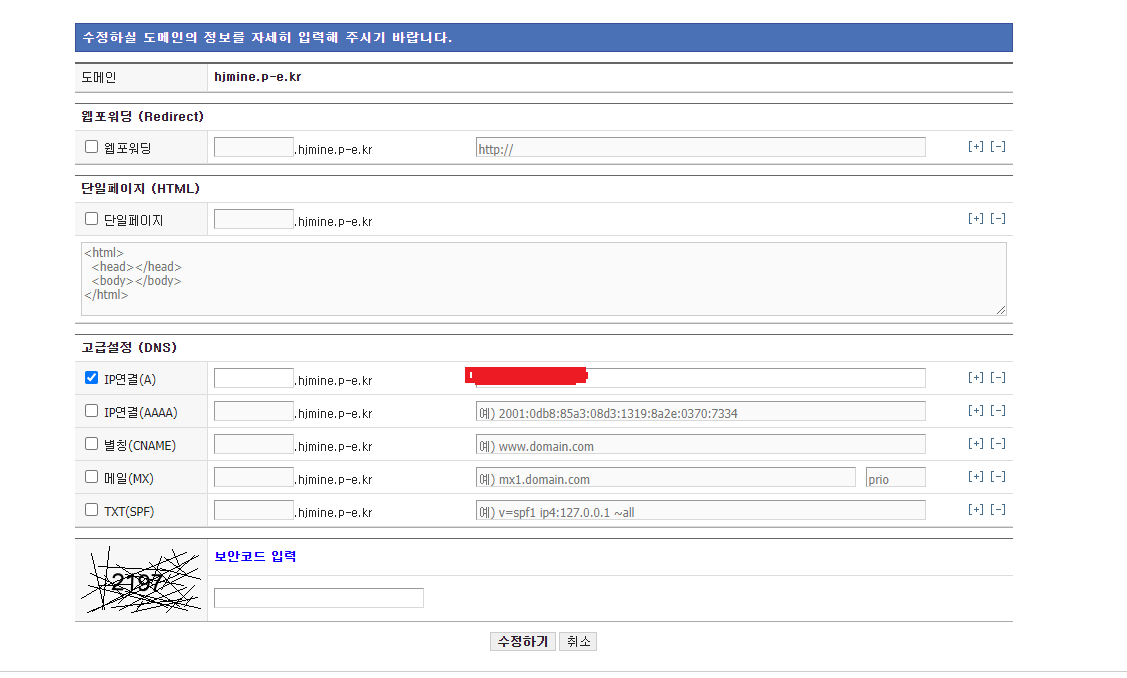
Once you’ve entered it like this and clicked “Update,” you’re all done setting up the domain.
Now launch Minecraft.
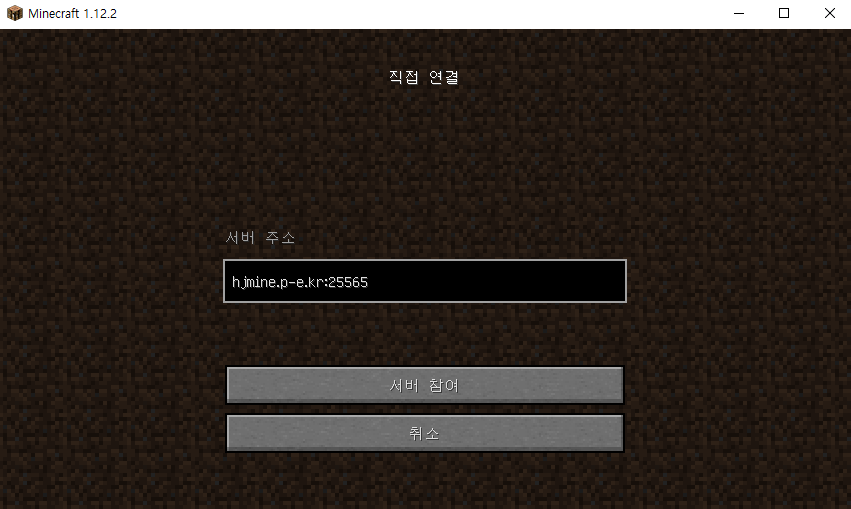
Then enter the address like this and connect…
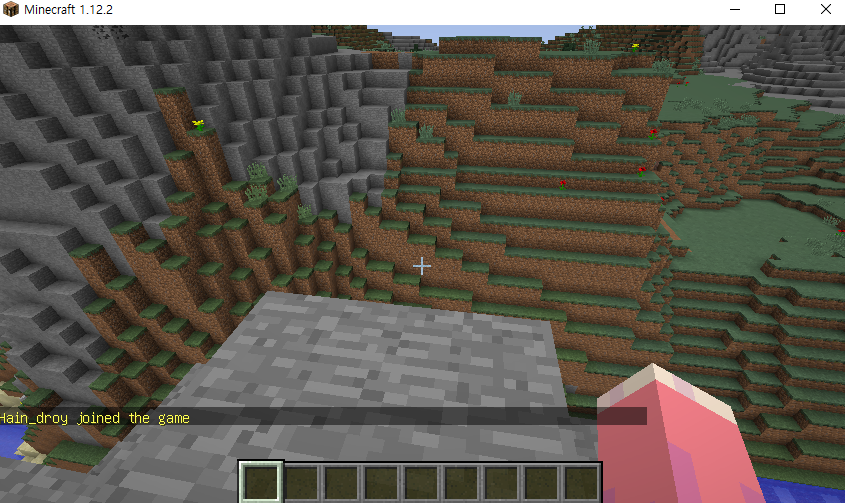
and you’ll see that you’ve joined the server.