Sorry I haven't been able to post lately. I've been so busy... Today it's time for part 3 of making a 24/7 Minecraft server!!
Last time, in part 2, we used FileZilla to connect to Google Cloud so we'd be ready to transfer the Bukkit files to the server.
Today we'll finally move Bukkit over to the server, set it up, and get the server running.
First, download the Bukkit build you need. You can search for it on Naver or Google, or download it from the Korean Minecraft Forum. To find the forum, just type its name into Google.
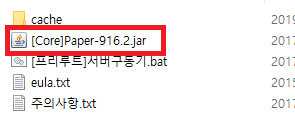
I'm going to use the Bukkit build that comes with 프리루트's server launcher. Remove the [Core] part from the name of the file called [Core]Paper-916.2.jar. Then connect to your server with FileZilla. If you're already connected, you can skip that step. I showed how to connect in my earlier post (https://harineubo.tistory.com/7)
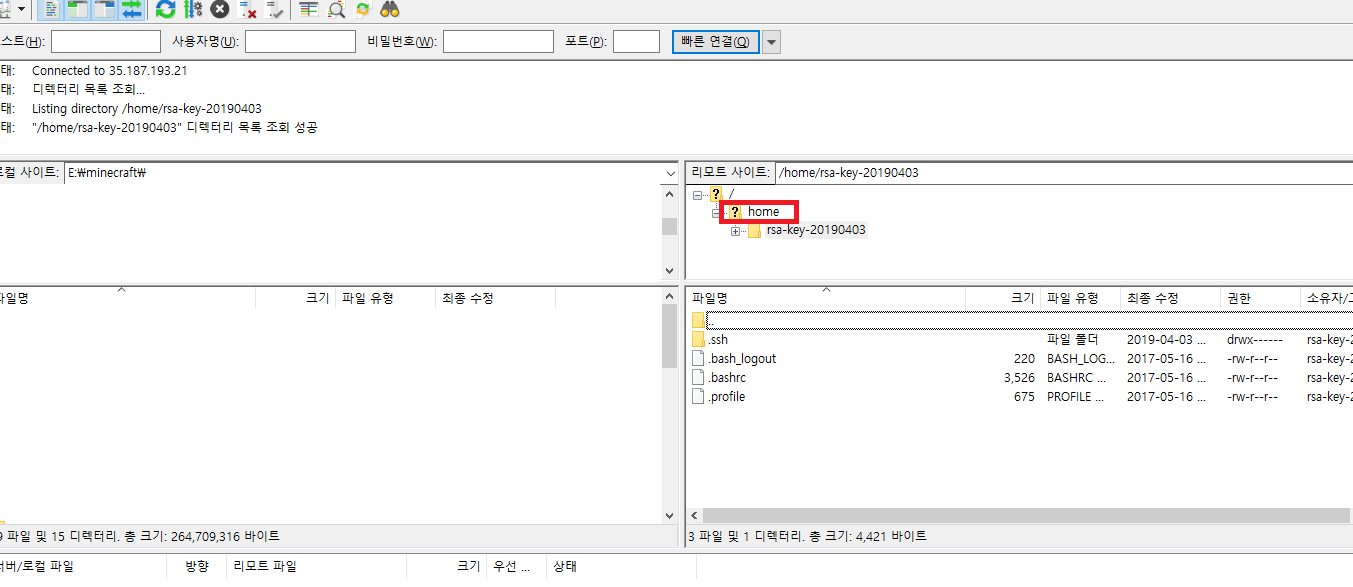
We created the Minecraft directory under home on the server, so click home under Remote site.
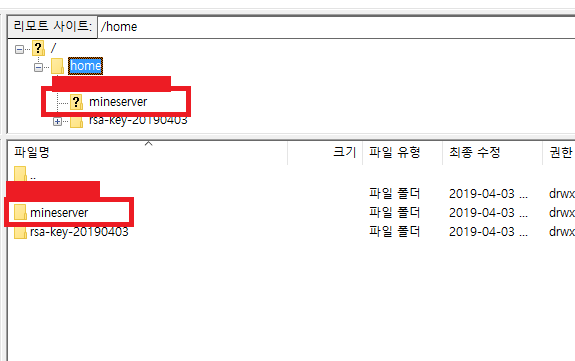
When you click home, you should see mineserver underneath it.
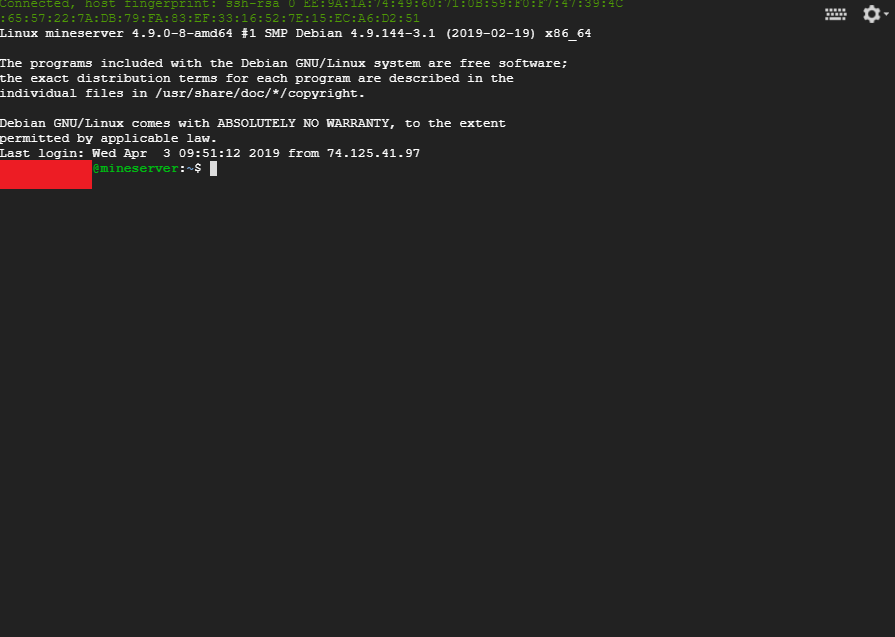
Now go to Google Cloud and connect via SSH.
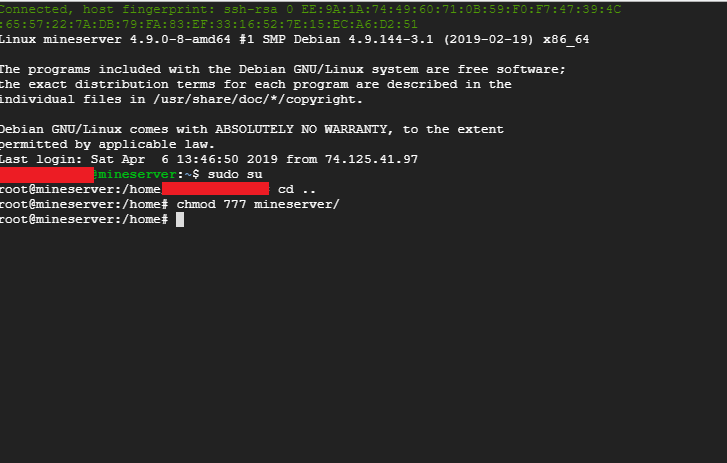
Next, enter sudo su, cd .., and chmod 777 mineserver/ in that order. sudo su gives you administrator privileges, cd .. takes you up to the home directory, and chmod777 mineserver/ gives you permission to modify the mineserver directory.
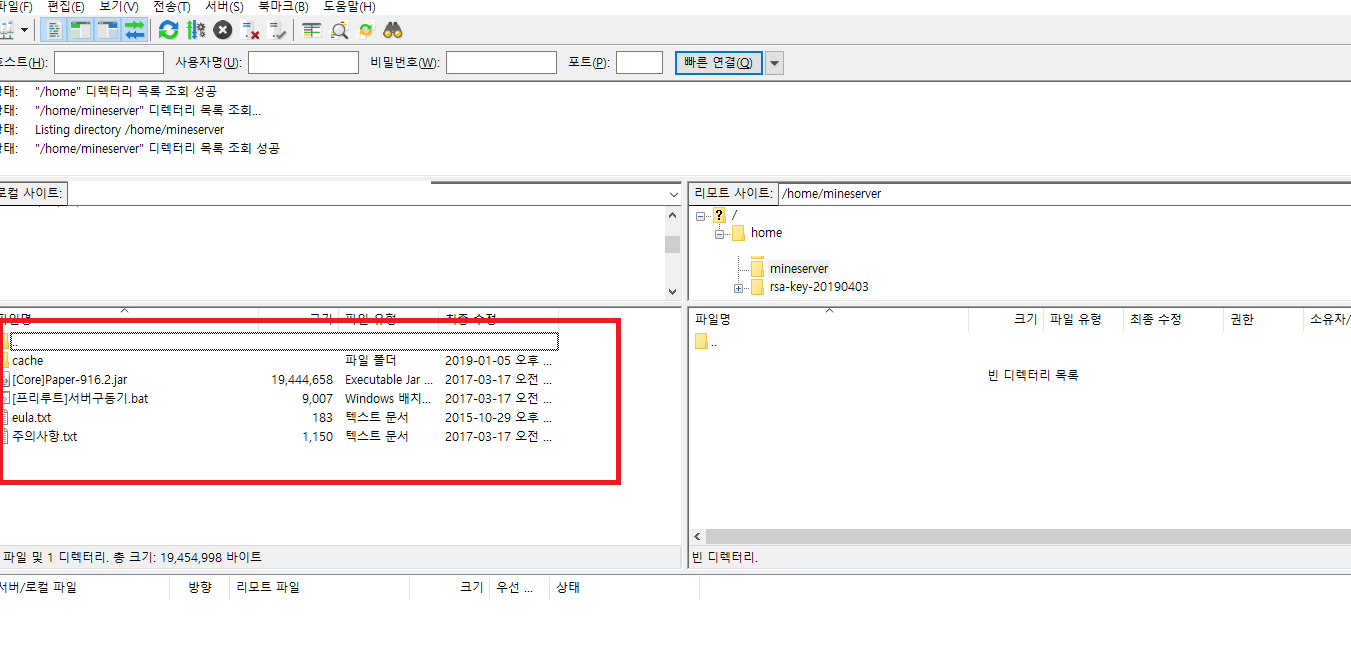
Now drag the Bukkit files from the left into the empty directory listing on the right. There are three things to move over: the cache folder, Paper-916.2.jar, and eula.txt.
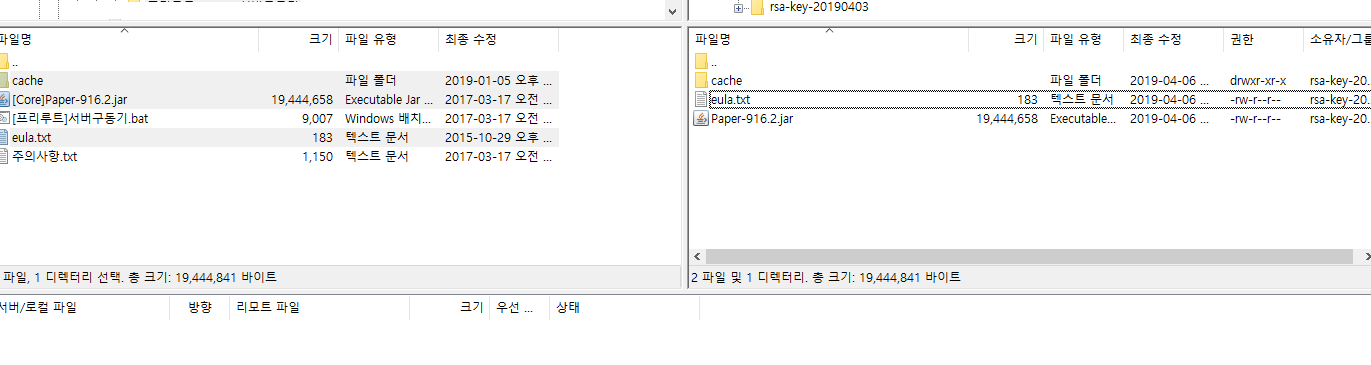
The files are now on the server, as you can see here.

Enter cd mineserver/ to go to the Minecraft server directory, then enter java -Xms500M -Xmx3G -d64 -jar Paper-916.2.jar to start Bukkit. The number after -Xms is the minimum amount of memory the server will use, and the number after -Xmx is the maximum. You can set those amounts yourself to suit the specs of the server you created.
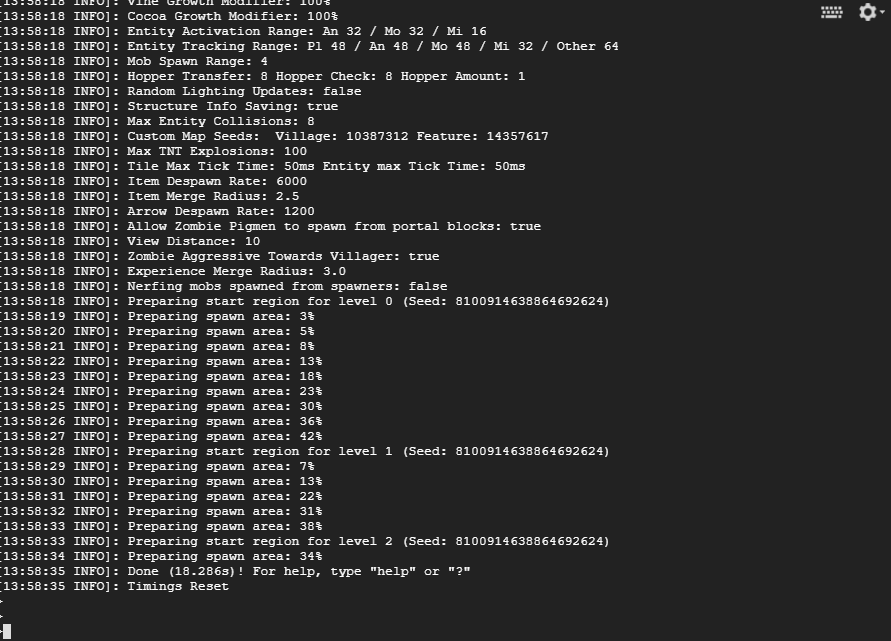
Ta-da!! The server is up and running!!! But it isn't a 24/7 server just yet. If you close this SSH window, the server shuts down too. So we'll need to install something called screen. Type stop in the Bukkit console to shut the server down.
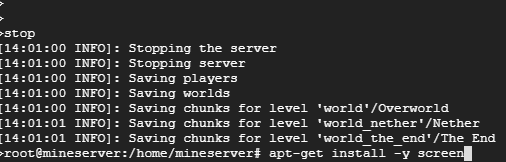
Once you've typed stop and Bukkit has shut down, enter apt-get install -y screen to install screen.

When the installation finishes, enter screen -S mine java -Xms500M -Xmx3G -d64 -jar Paper-916.2.jar.
This command creates a new session called 'mine' and runs the part starting with java in that session. That's the part that starts Bukkit.
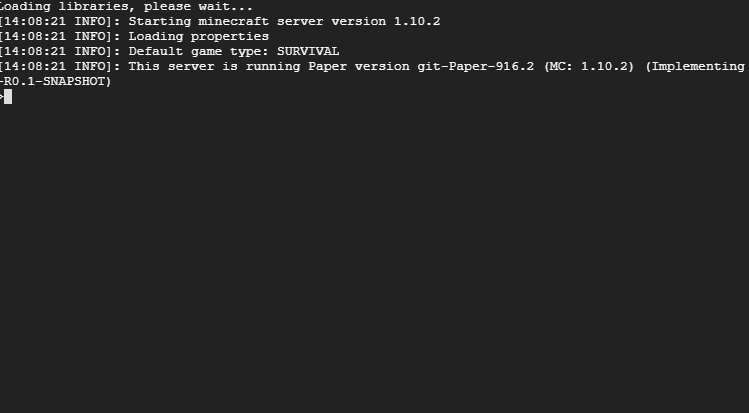
You should see a new session open like this and Bukkit start up. Now, to close SSH and leave Bukkit running just as it is, press Ctrl+a and then d.
You'll see that you've left the Bukkit console and are back in your original session.
You can close SSH now, and there you have it: a server that runs around the clock without stopping.
If you'd like to get back to the Bukkit console, enter screen -r mine to return to the session where Bukkit is running.
Use the name you chose in place of mine.
Now we need to allow port 25565 on the server so other people can join. That's the port Minecraft multiplayer uses.
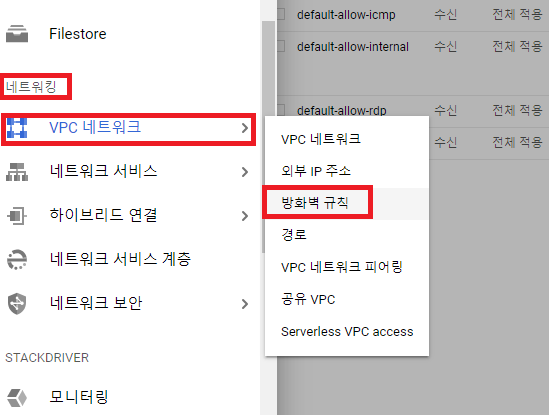
In Google Cloud, click the three-line menu in the upper left. Under Networking, go to VPC network and select Firewall rules.
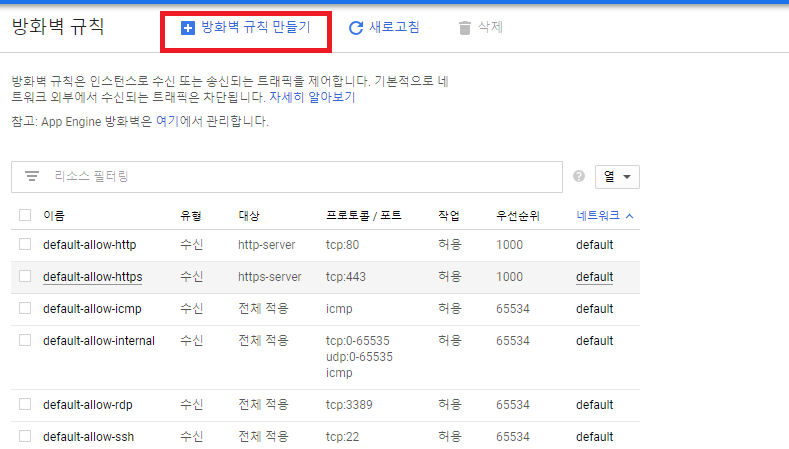
Once you're there, click Create firewall rule at the top.
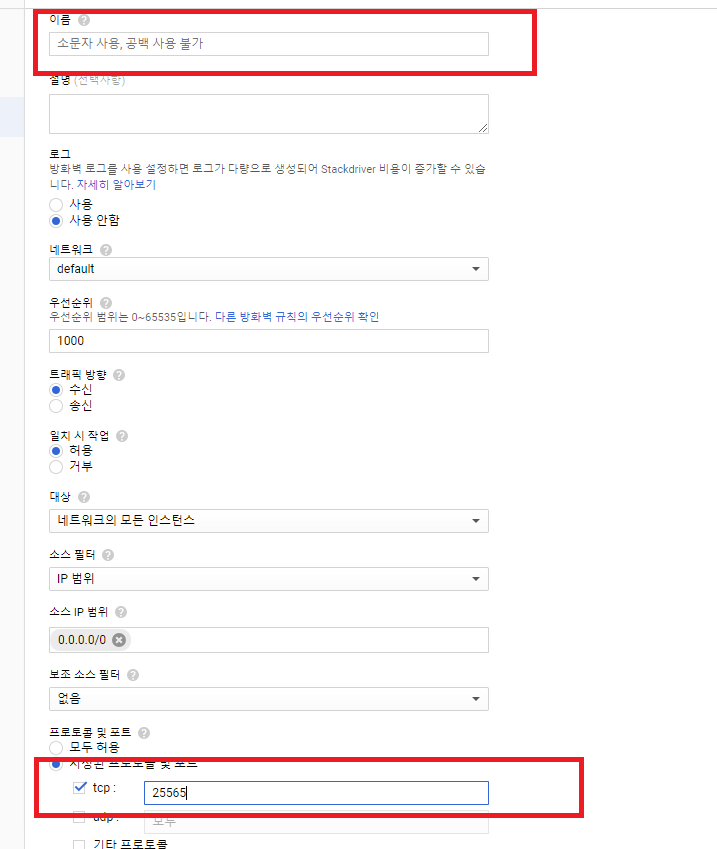
Enter a name and specify the port. I named mine minecraft-firewall.

And now we've opened the port.
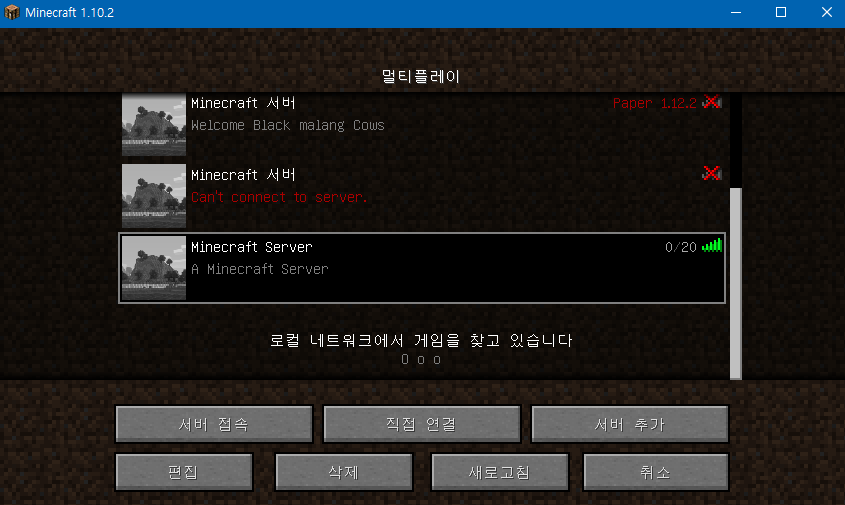
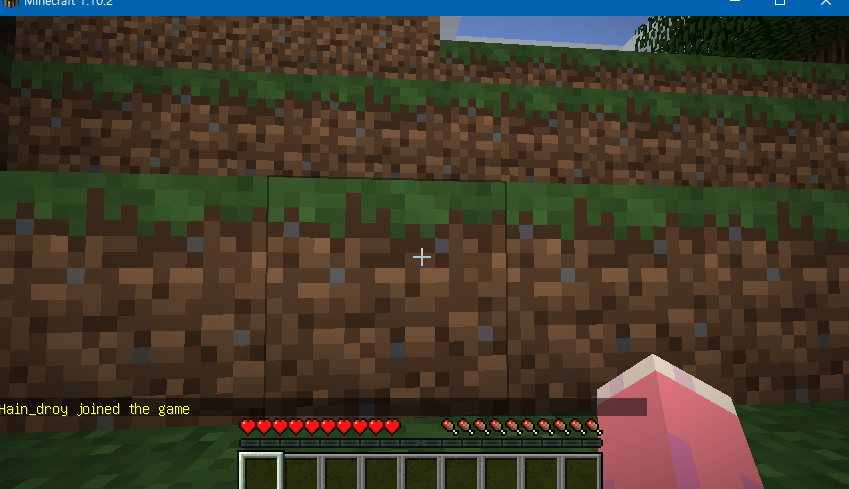
The server is now open for people to join. Our 24/7 Minecraft server is ready! If you'd like to add a plugin, find one that matches your server version and give the plugins directory the permissions it needs. Once you've switched to the Minecraft directory, running chmod 777 ./plugins should do it.~~
Thanks for taking the time to read my guide, even with its shortcomings. I hope it helps a lot of people.
If you're curious about anything or there's something you don't understand, ask as many questions as you like. Thank you!
2020.8.10
I'm a little late updating this, but if you get a -d64 error or see version 11 when you enter java -version, https://harineubo.tistory.com/12
Installing Java 8 on Debian 10 (buster)
Last year, when I wrote my post on hosting Minecraft on Google Cloud, I was using Debian 9 as my OS. When I checked this year, I saw it had been updated to Debian 10. But with Debian 10, Ora…
harineubo.tistory.com
please take a look at this post.
Part 1
How to Run a 24/7 Minecraft Server with Free Hosting, Part 1
At first I wanted to run a 24/7 Minecraft server with my friends, but I was worried about the electricity bill if I ran it on my own computer. That's how I got into looking for a way to host the server elsewhere. I spent the next few days looking into hosting companies…
harineubo.tistory.com
Part 2
How to Run a 24/7 Minecraft Server with Free Hosting, Part 2
Last time we used Google Cloud to create a Minecraft multiplayer server. This time we'll look at how to set it up. Under Connect, click SSH. When you click SSH, a window like this opens, and here…
harineubo.tistory.com
"This post is part of the Coupang Partners program, through which I receive a commission."