Last time, we set up a Minecraft multiplayer server on Google Cloud.
This time, let's look at how to configure the server.
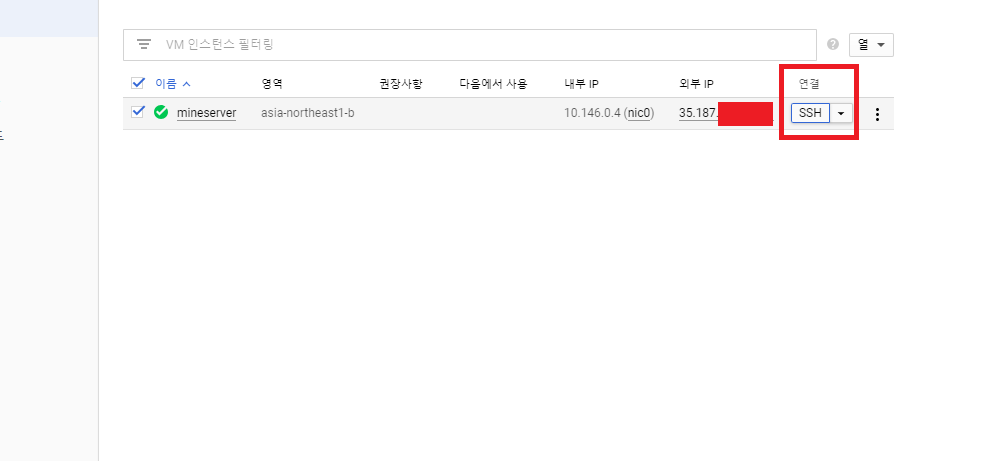
Under Connect, click SSH.
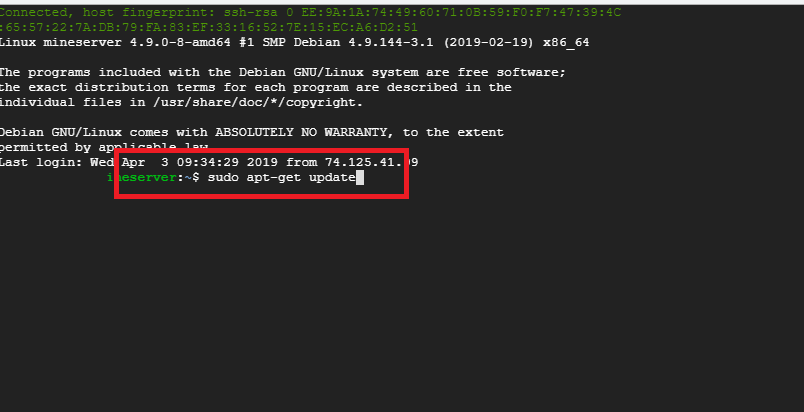
When you click SSH, a window like this will open. Type sudo apt-get update in it, as in the picture above, and press Enter.

Next, type sudo apt-get install -y default-jre-headless.
Now we need a directory where we can run the Minecraft server. We'll create a folder under /home.

First, type sudo su so we can create a directory under /home. Then type cd .., followed by mkdir mineserver. You can use any name you like in place of mineserver.
Now we need to download Bukkit. That's easy if you use the plugin Minecraft officially supports, but if you play on an older version or want to use plugins and mods together, you'll need to transfer the files to the server yourself.
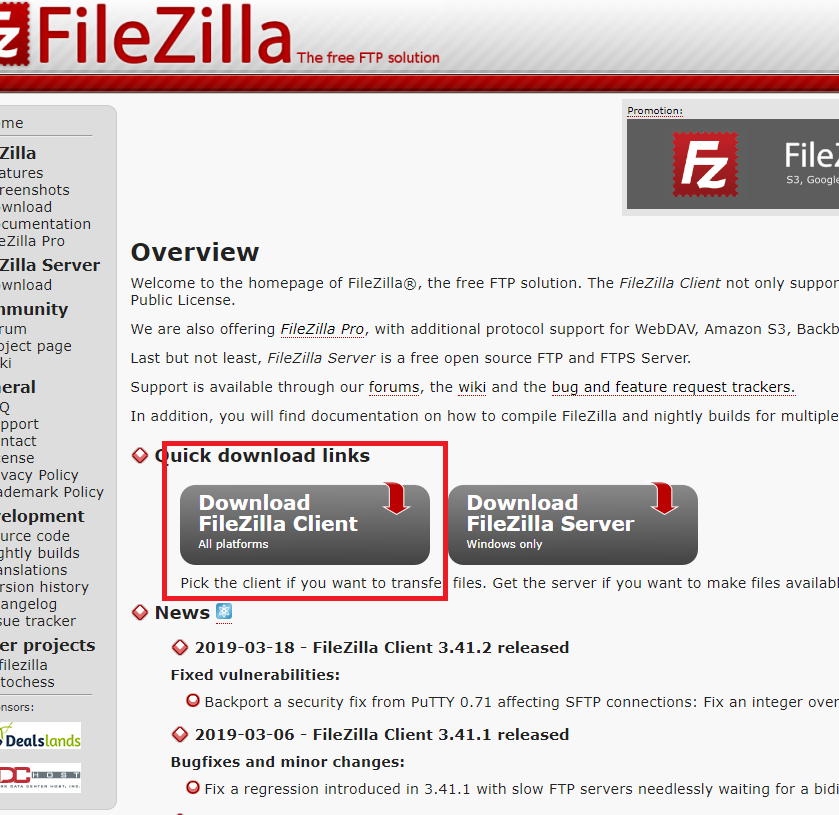
For that, you'll need to use FTP. I usually use FileZilla. https://filezilla-project.org/ Download FileZilla from this site and install it.
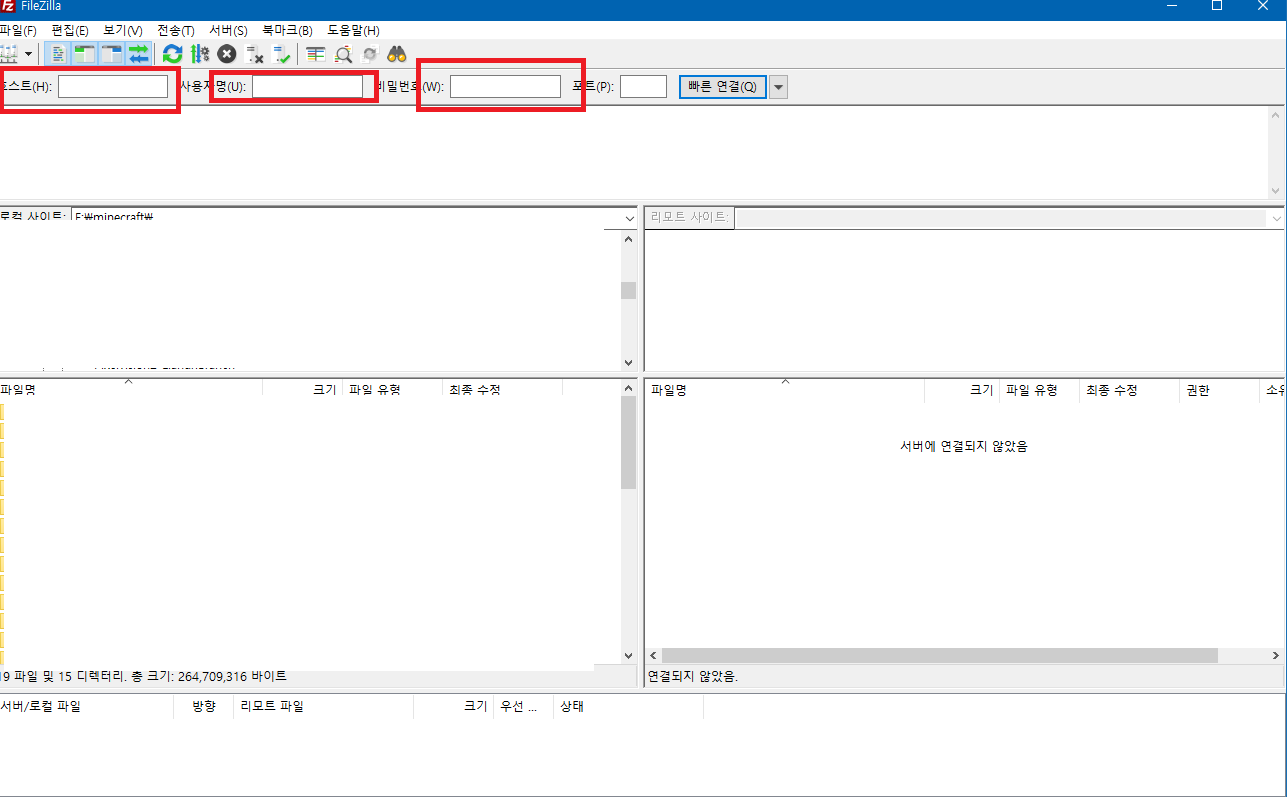
Here's what you'll see when you open FileZilla. To connect to the server, we need to fill in the fields outlined in red in the picture. But we never set any of that up when we created the server, so we don't have anything to enter there. We'll have to find another way.
https://www.chiark.greenend.org.uk/~sgtatham/putty/latest.html Download the file called puttygen.exe from this site.
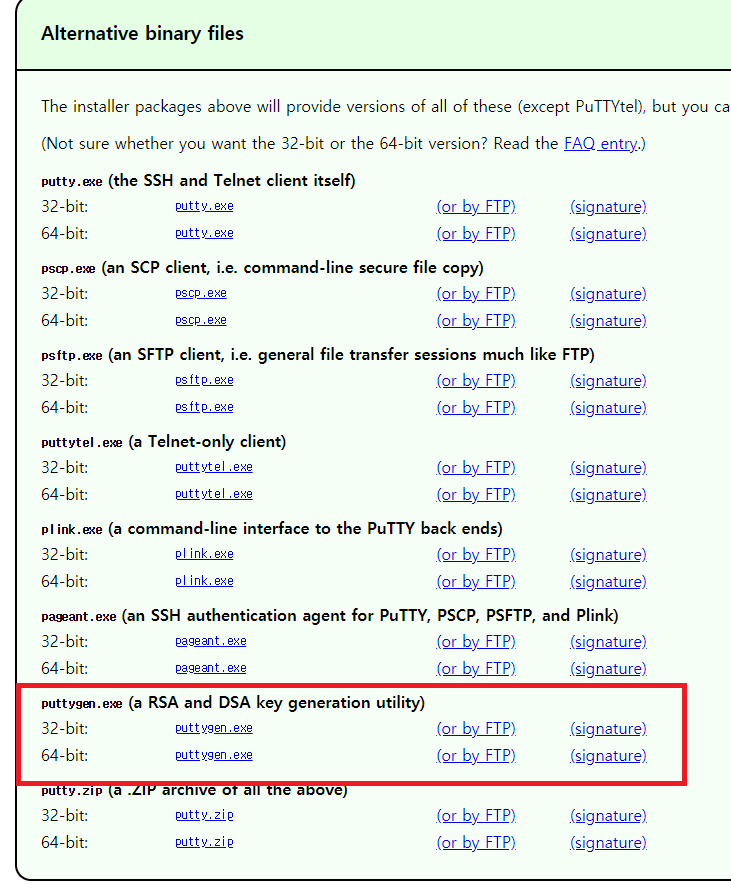
Choose the version that matches your computer, download it, and run it.
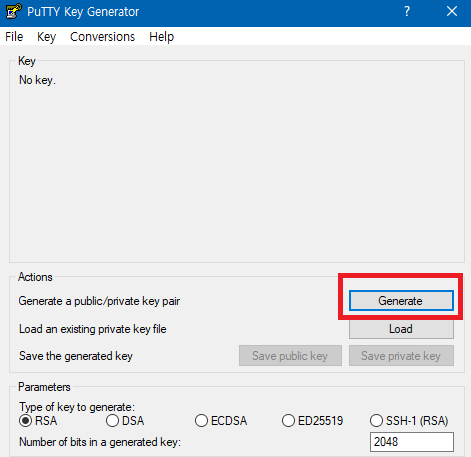
When you see the screen above, click Generate. A green progress bar will appear. Give it a moment.
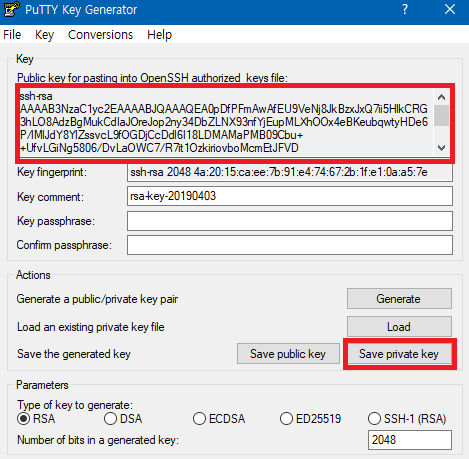
When you see this window, copy everything inside the red box. Then click Save private key and save the file.
When you save it, use the value in the Key comment field as the filename.
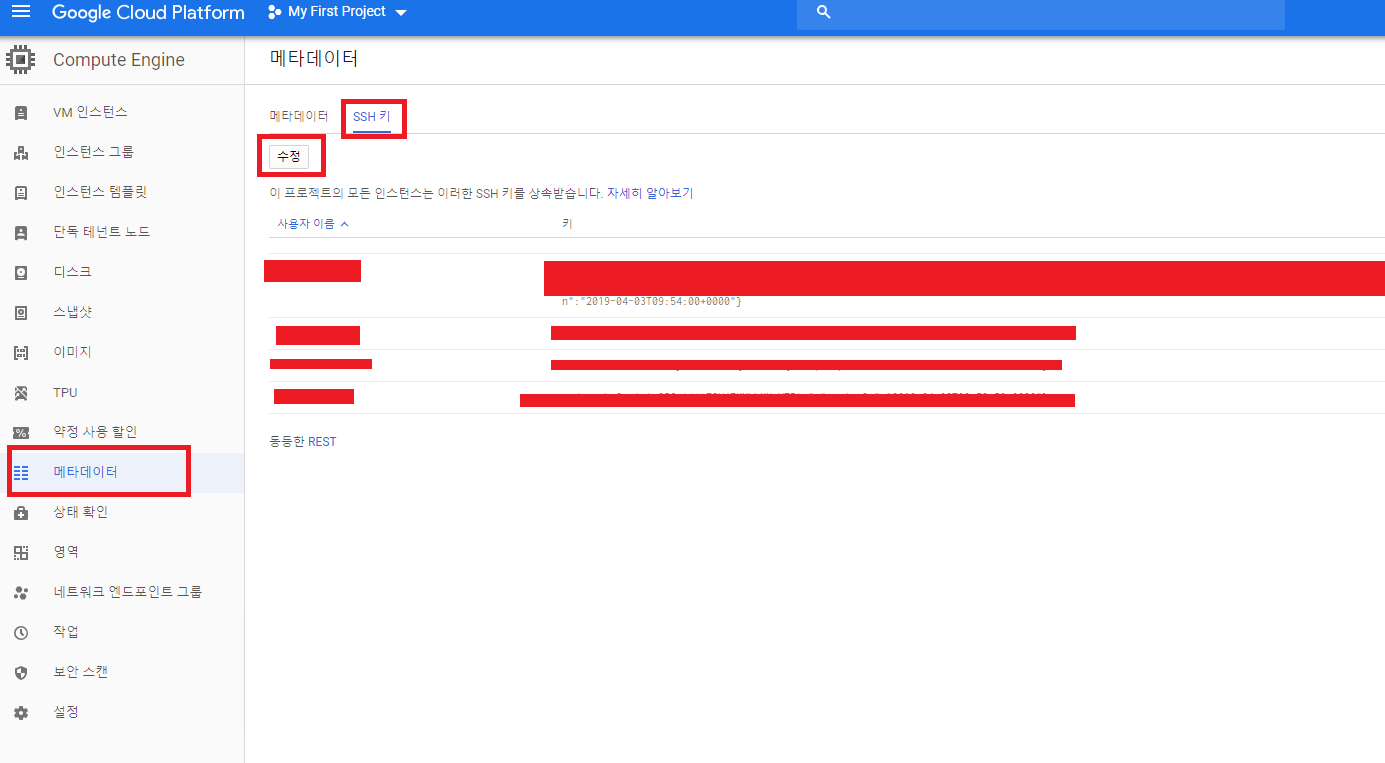
Now go back to Google Cloud. On the screen showing the server you created at the start, you'll see Metadata on the left. Click Metadata, then SSH keys, then Edit.
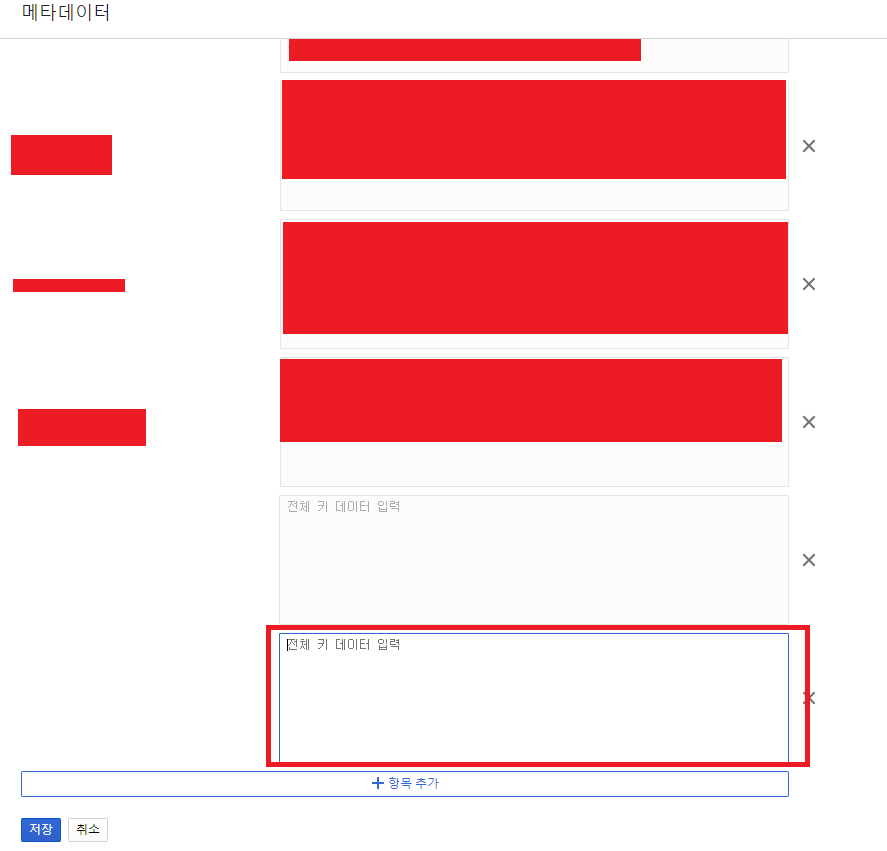
If you can't enter anything when you first click Edit, click Add item. Paste what you copied into the field labeled Enter entire key data and click Save.
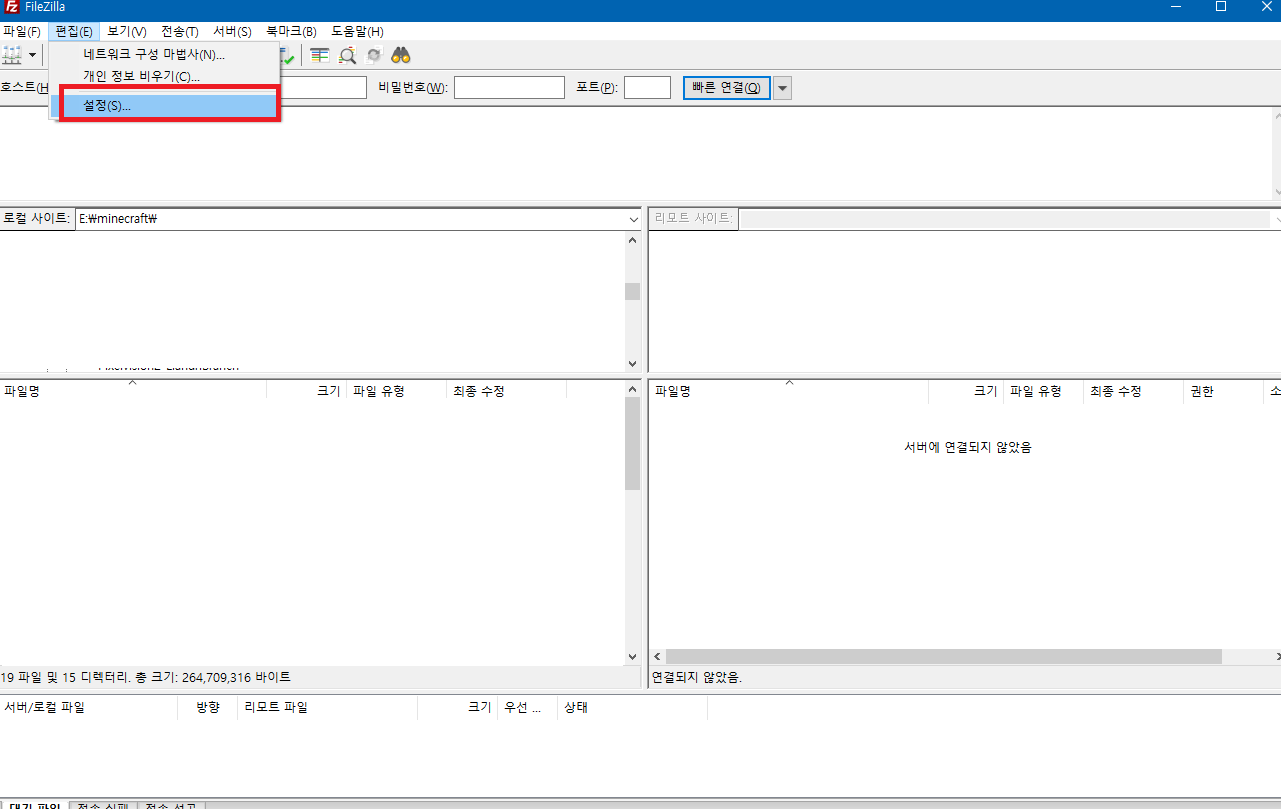
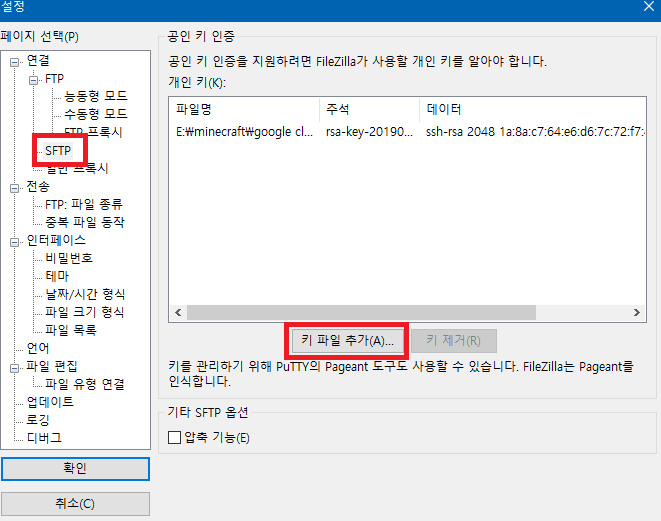
Back in FileZilla, open the Edit menu at the top and click Settings. You'll see a screen like this. Click SFTP, as shown in the picture, then click Add key file and select the file you saved earlier in PuTTYgen.
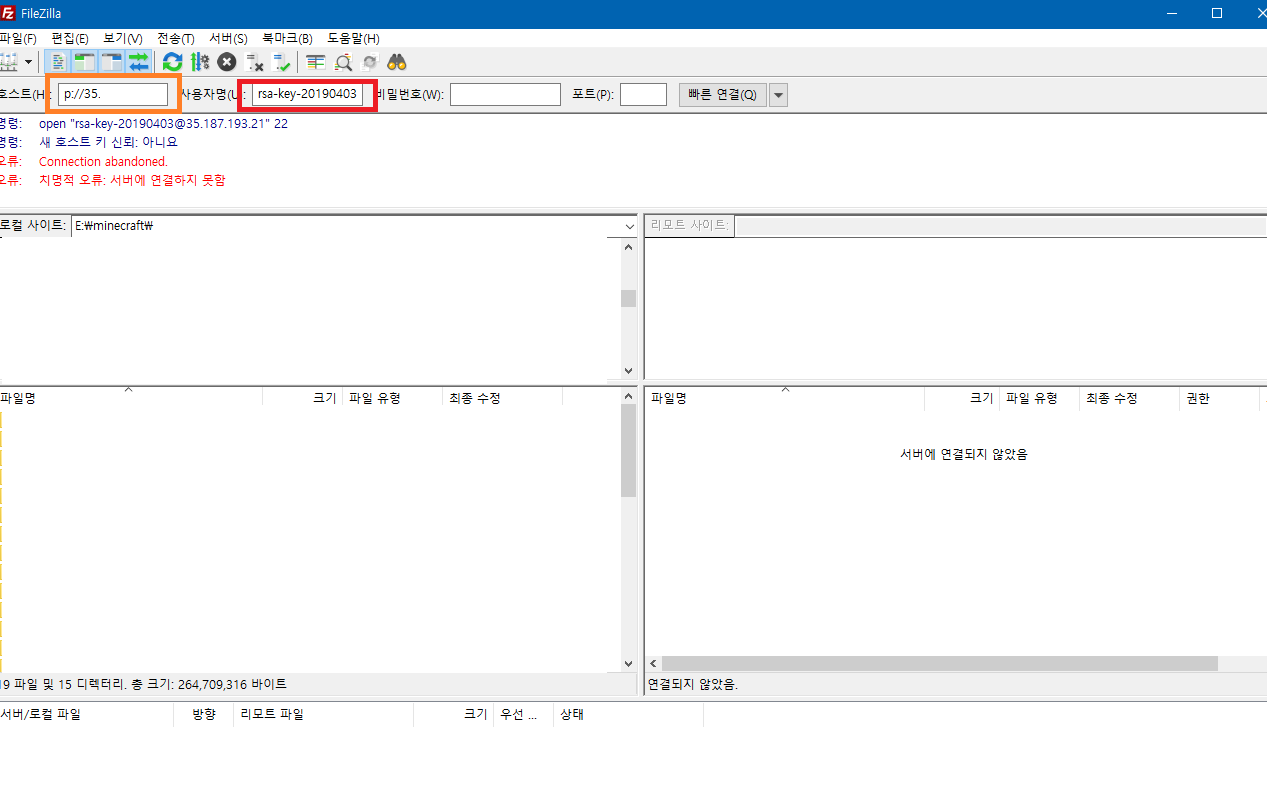
Next, you'll need to fill in Host and Username in FileZilla.

For Host, enter the external IP address shown in Google Cloud with sftp:// in front of it. For example, if my IP address were 35.187.143.84, I'd enter sftp://35.187.143.84. For Username, use the Key comment value you saw earlier in PuTTYgen.
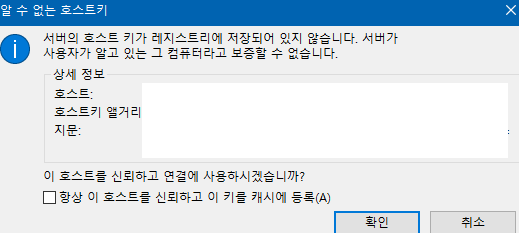
Once you've entered those and connected, a window will pop up saying the host key is unknown. Ignore that and click OK.
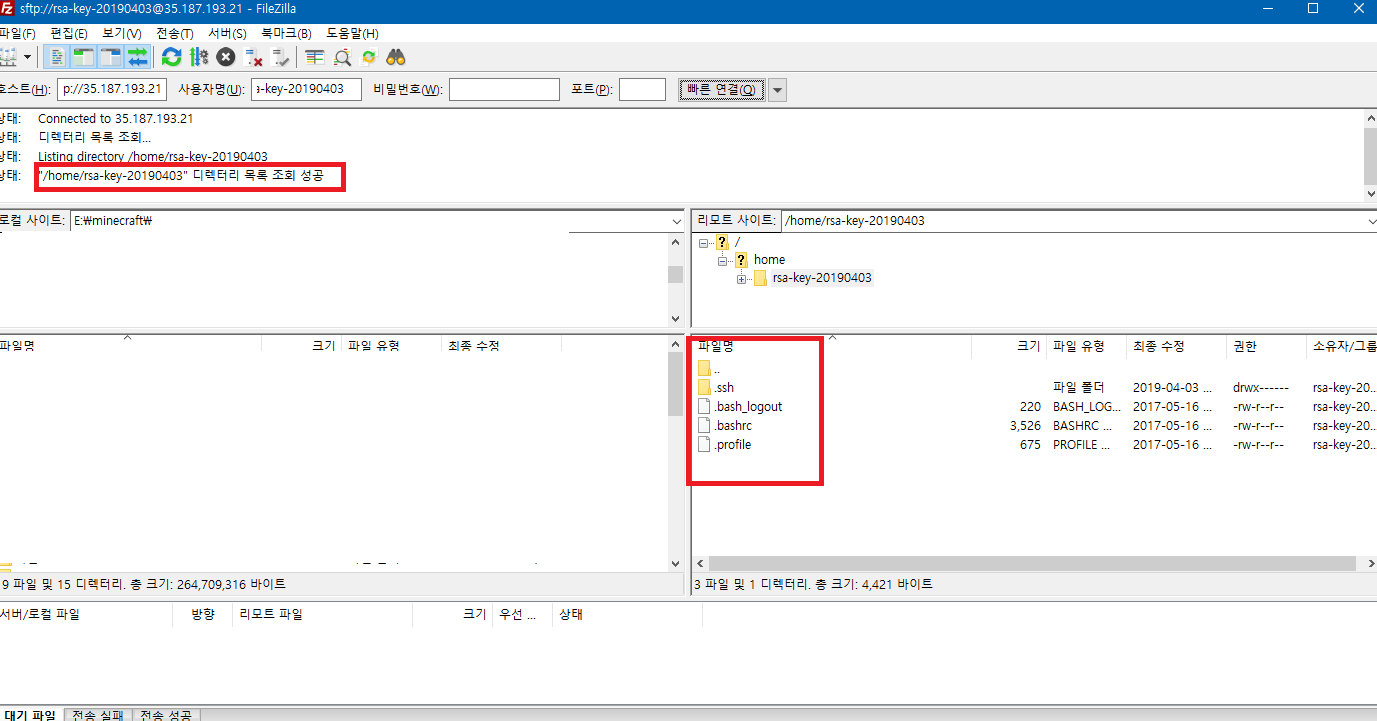
As you can see in the picture, we're now connected to Google Cloud.
Today we connected to our Google Cloud server and got ready to transfer the Bukkit files.
I looked everywhere and couldn't find all of this explained in one place, so I wrote it up and posted it here. I hope it helps a lot of you.
Next time, we'll get to the actual server configuration and see how to get it running.
See you in Part 3~~
Part 1
Setting Up a 24-Hour Minecraft Server with Free Hosting, Part 1
At first I wanted to run a 24-hour Minecraft server with my friends, but I was worried about the electricity bill if I ran it on my own computer. That's how I got into looking for server hosting;; So for the next few days, I looked into hosting companies…
harineubo.tistory.com
Part 3
Setting Up a 24-Hour Minecraft Server with Free Hosting, Part 3
Sorry I haven't posted lately. I've been so busy... Today we're on Part 3 of setting up a 24-hour Minecraft server!! Last time, in Part 2, we used FileZilla to connect to Google Cloud and get ready to transfer the Bukkit files to the server…
harineubo.tistory.com
"This post is part of the Coupang Partners program, and I receive a commission through it."